Mac Icons

Alarm Clock 
Arrow Down 
Arrow Left 
Arrow Right 
Arrow Up 
Baby Bottle 
Battery (High) 
Battery (Medium) 
Battery (Low) 
Beaker 
Book 
Briefcase 
Broom 
Bug 
Calendar (Day) 
Calendar (Month) 
Camera 
Car 
Chart (Line) 
Chart (Pie) 
Chat 
Checkmark 
Coffee 
Day 
Desk 
Document 
Envelope 
Eye 
Flame 
Gift 
Group 
Guillotine 
Heart 
Home 
iMac 
Inbox 
Inbox (In) 
Inbox (Out) 
Index Card 
Laptop 
Light Bulb 
Lightning 
List 
List 
List 
List 
Lock 
Map 
Money ($) 
Money (€) 
Money (£) 
Music 
Night 
Org Chart 
Paper Airplane 
Paused 
Pencil 
Person 
Person 
Perspective 
Phone 
Play 
Radar 
Rain 
Repeating 
Repeating 
Search 
Shopping 
Skull 
Sort 
Star 
Suitcase 
Tagged 
Trophy 
Warning 
Waypoint 
Wrench
iOS Icons

Alarm Clock 
Arrow Down 
Arrow Left 
Arrow Right 
Arrow Up 
Baby Bottle 
Battery (High) 
Battery (Medium) 
Battery (Low) 
Beaker 
Book 
Briefcase 
Broom 
Bug 
Calendar (Day) 
Calendar (Month) 
Camera 
Car 
Chart (Line) 
Chart (Pie) 
Chat 
Checkmark 
Coffee 
Day 
Desk 
Document 
Envelope 
Eye 
Flame 
Gift 
Group 
Guillotine 
Heart 
Home 
iMac 
Inbox 
Inbox (In) 
Inbox (Out) 
Index Card 
Laptop 
Light Bulb 
Lightning 
List 
List 
List 
List 
Lock 
Map 
Money ($) 
Money (€) 
Money (£) 
Music 
Night 
Org Chart 
Paper Airplane 
Paused 
Pencil 
Person 
Person 
Perspective 
Phone 
Play 
Radar 
Rain 
Repeating 
Repeating 
Search 
Shopping 
Skull 
Sort 
Star 
Suitcase 
Tagged 
Trophy 
Warning 
Waypoint 
Wrench
Installation
Setting custom perspective icons in OmniFocus 2 can only be done using OmniFocus for Mac with the Professional upgrade. Using custom perspectives on the iOS version of OmniFocus also require it have the Pro upgrade.
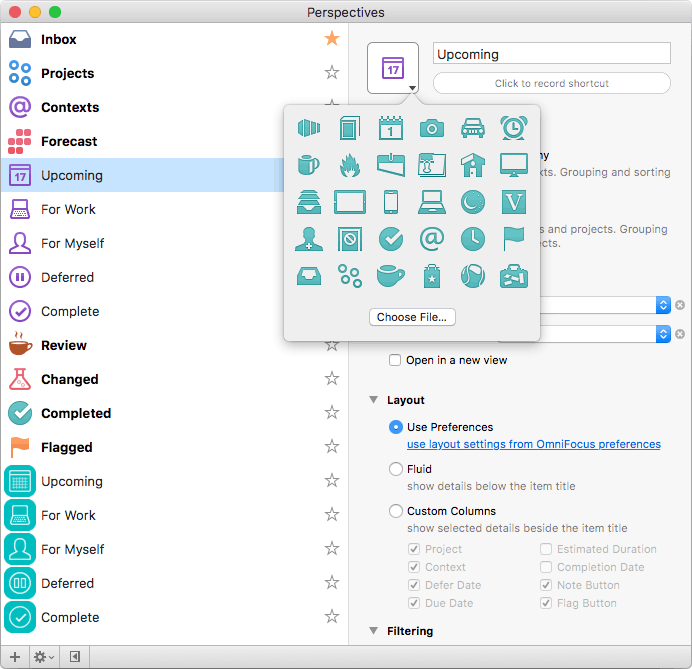
- In the Menu, go to Perspectives > Show Perspectives
- Click on the Perspective you want to edit, or add a new one. (Note that you cannot change the icons for Inbox, Projects, Contexts, Forecast, Flagged, and Review).
- Drag the icon you want to use from this site to the icon picker.
If you want to use both Mac and iOS icons, the best strategy is to duplicate your perspectives, so you have one you use on the Mac, and one you use on iOS, each with the appropriate icon file.